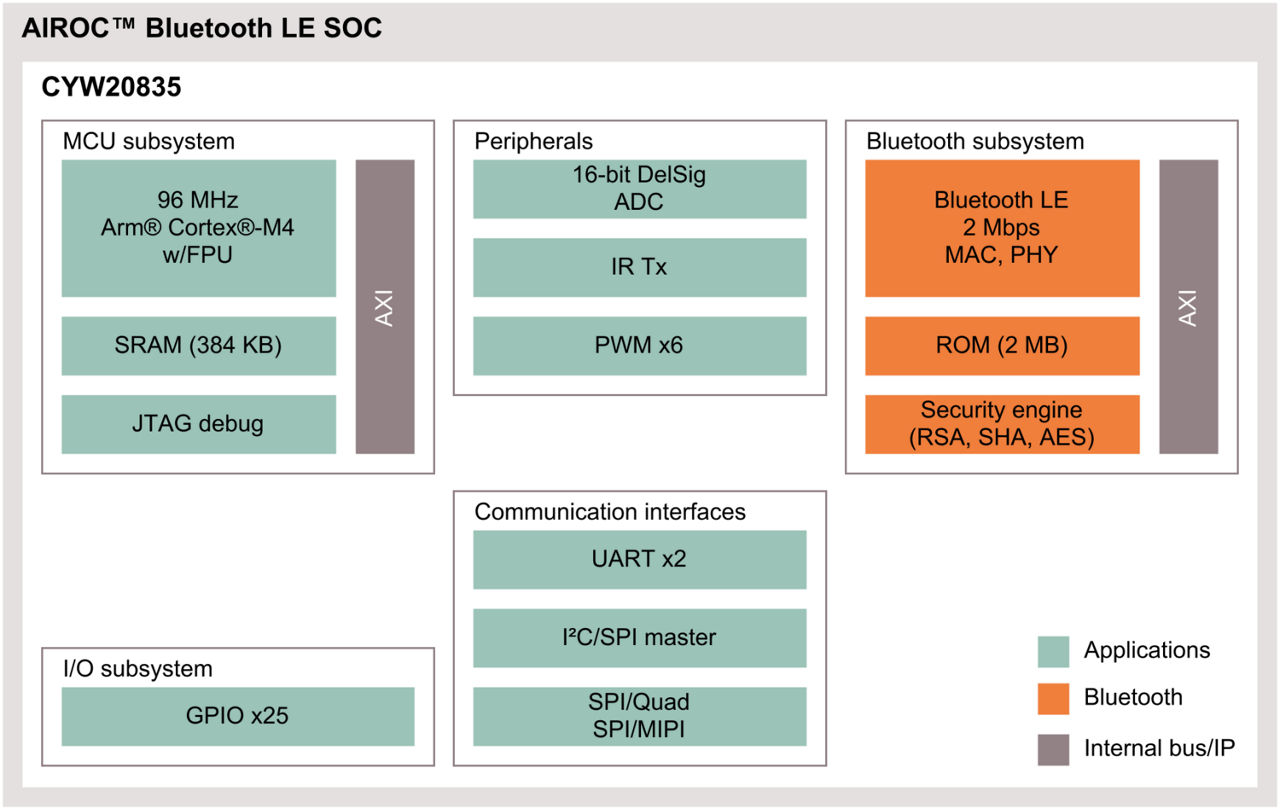
Introduction:
I2C Protocol:
A quick background / recap on I2C (inter- integrated - circuit) bus: It is a 2-wire, one to many digital communication .It only requires two lines, a serial data line (SDA) and serial clock line (SCL). It follows a master/slave hierarchy wherein the master is the device that clocks the bus, intiate data transfers with the slaves (read / write messages). The slaves are devices that respond only when approached by the master, through their unique address. Hence it is imperative to avoid duplication of addresses among slaves.

- In case of I2C-Write: the master initiates communication on the bus by sending the START bit. Then the target slave address follows on subsequent clock pulses.When the target slave device then reads the WRITE bit it understands that the master wants to write to it. The targer slave device responds with an acknowledgement bit "ACK" as a feedback to the master to proceed with the data transfer. After each byte transfer from the master to the slave, the slave responds by sending an ACK. Once the master is done with transferring all the data it sends a STOP condition to end the transmission.
- In case of I2C-Read: the master triggers a START condition after which the target slave address is transmitted on subsequent clock pulses followed by READ bit. The addressed slave device then responds with an acknowledgement bit "ACK". Afterwards the slave takes control of SDA line and sends data to the master. For each transmitted byte, the master sends an acknowledgment bit "ACK". The master responds with a NACK after the last byte it wants to receive, resumes control of the bus and sends a STOP condition to end the transmission.
 |
| Example I2C Write Transanction |
 |
| Example I2C Read Transanction |
I2C Example with ESP32:
I created a simple example to demonstrate how two MCUs can exchange data via I2C. The example invloves writing a simple counter application where the slave (ESP32) would increment a counter starting zero every time it recieves an I2C write request from the master (CYW20835). After each write request, the master will make an I2C read request to read the current counter state. The write request will be triggered on the master side via the USER button on the CYW920835M2EVB. We will add UART print statements to the application so we can verify the counter state via PuTTY serial monitor.
Regarding the I2C connections, we only need to wire the SDA, SCLK and GND pins on both controllers as shown below. They both use 3.3V logic GPIOs and pull-up resistors are already available on the CYW920835M2EVB so I do not expect any hardware issues.
 |
| Hardware setup with I2C wiring |
ESP32 I2C Slave Code:
I created the simple sketch below in Arduino IDE to program the ESP32 as an I2C peripheral that can be accessed on address 0x25 on the I2C bus. I initalized an 8 bit unsigned integer counter (one byte) to be incremented when the I2C master sends the specific OPCODE 0x01.
The "setup" function (called on ESP32 startup) registers two callback functions to handle read/write requests from master. It also intialized the I2C peripheral and enables serial terminal output so we can track the I2C transmissions during run time.
The "onReceive" callback function (called upon write requests) checks for data trnasfers from the master. It reads one byte (the expected OPCODE). if the OPCDODE matches INCREMENT_OP_CODE it proceeds with incrementing the counter. Then the slave write to master the update counter value
CYW20835 I2C Master Code:
With the help of HAL_I2C_MASTER example from Infenion btsdk, I created the small application code below to make the master code. As the application starts, it registers a button callback function to be triggered when the "USER" button is pressed. The callback function "i2c_interrupt_callback" performs a write request to the ESP32 with the target OPCODE 0x01. Then it makes a read request to fetch the ESP32 counter value.
Testing:
After flashing the above code pieces to the ESP32 (I2C Slave) and CYW20835 (I2C Master), I started the serial monitor to read the UART traces of both micro-controllers as I press the USER button on the CYW20835 evalboard. In the screenshoot below, you can see the counter being incremented internally on the ESP32 as it recieves a write request witht the expected OPCODE. On the CYW20835 side we are also able to read the latest status of the counter over I2C.