Monday, December 8, 2025

0

Inter-Process Communication: Playing with COM objects in Python

Introduction and Motivation:

When developing cross-platform modular software applications, interoperability is essential to ensure easy interaction between different components of an application even if they were implemented in different programming languages. This is where inter-process communication technologies come in action to enable parallel processing and share of data between processes running either locally on same machine or distributed across a computing cluster. 

Multiple inter-process communication frameworks / libraries already exist, each with its own architecture, performance and support of  wide range of programming languages. Example libraries that I came across my working journey are: gRPC (an open-source remote procedure call framework developed by Google) and ZeroMQ (a flexible asynchronous messaging library designed for use in distributed or concurrent applications). 

Nevertheless, I was always curios about OS built-in communication mechanisms (i.e, at the end of the day an operating system is a set of components and services that need to interact with each other according to some standard). In addition, I came across certain scenarios where using an external communication library was an 'overkill' for the problem at hand.

In the context of Windows, Component Object Model (COM) is Microsoft inter-process communication component that is built in the native Windows API facilitating interaction between software objects that implements one or more interfaces. These objects can be within a single process, in other processes, even on remote computers. 

In this blog-post, I want to share my initial experience working with COM objects using Python. This can help creating Python applications that can talk and reuse functionality from Windows applications written in .NET / C++ and expose their features via COM interface.

About COM (Component Object Model): 

According to Microsoft, COM is an object-oriented system for creating binary software components that can interact. It is the foundation for Microsoft's OLE (Object Linking and Embedding) technology which allows Microsoft Office applications to communicate and exchange data between documents (e.g, embedding an Excel chart inside a Word document)

Through COM, a client object can call methods of server objects, which can be Dynamic Link Libraries (DLLs) or executables (EXEs). Remote COM execution is possible by using Distributed Component Object Model (DCOM) which exposes application objects via remote procedure calls (RPCs)

In-Process and Out-Of-Process COM:
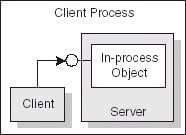
There are two main types of COM servers: in-process and out-of process servers. In-process servers are implemented in the form of a dynamic linked library (DLL) running in the same process space as the client. In this case, the client communicates with the in-process server using direct calls to the COM interface.
 
In-process server
Credits: docwiki.embarcadero.com
 

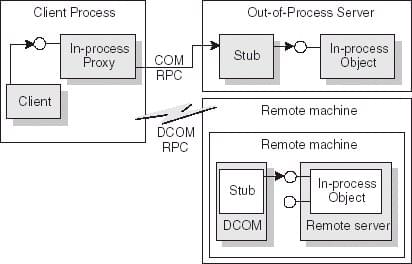
Out-of-process servers are implemented in the form of an executable file (EXE) that runs in a different process space as the client. The local server uses COM with a proxy to communicate with the client. In case the COM server resides on a remote machine, distributed COM (DCOM) is utilized where some RPC protocol transfer the calls to the remote COM server. In both cases, all interface calls look alike from the client perspective as the COM proxy resides in the same process as the client.
 
 
Out-of-process and remote servers
Credits: docwiki.embarcadero.com

DLL Surrogates:

COM provides a mechanism that allows an in-process server (a DLL) to run in a surrogate (EXE) process.
This allows a COM server to serve multiple clients simultaneously (i.e. similar to an out-of process sever). The surrogate also provides additional security features and help isolating client side application from faults occurring on the server side. Windows provides a default surrogate process: "dllhost.exe" that can be used to host the COM (DLL) server. In summary, a DLL surrogate is useful to make an in-process component act as a remote service.

COM Server - Client example in Python:

You can write COM based applications in multiple programming languages. The most common combination I have seen is C++ and C# with Visual Studio IDE providing a starting template for development. Here I want to explore however the extension of COM development into Python world. 

To do so I picked up the "comtpyes" library which seems to be an active project on Github. In short, the library is based on "ctypes" python library allowing the creation of pure python wrappers around DLLs or shared libraries functions. This means that one can create, register and talk to COM interfaces using python syntax. Since COM is Microsoft based technology, the library is only meant for Windows.

I created a simple server-client project to demonstrate working with COM objects in Python. 
The following components are needed:
 
  • Install Python 3.9 or higher to work with comtypes 
  • Start a Python virtual environment with: python -m venv venv 
  • Activate the virtual environment: . venv/Scripts/activate 
  • Install comtypes  with: python -m pip install comtypes
  • Windows Kits version 10 and above need to be installed using Visual Studio Installer

Creating and registering COM server in Python:

To implement a COM server object in Python we first need to create a type library file using IDL (Interface Definition Language) syntax. This file provides the COM interface attributes along with the definition of derived classes and their methods. Every type library / interface / class defined needs to be labelled with a unique GUID. An example IDL file syntax is provided below which defines a COM interface named: "IMyCOMInterface" with a derived class: "MyCOMObject" that has the method: "MyCOMMethod"

import "oaidl.idl";
import "ocidl.idl";

[
uuid(FFE9DC12-DF9B-4B3A-896D-14556FFC59E6),
dual,
oleautomation
]
interface IMyCOMInterface : IDispatch {
HRESULT MyCOMMethod([in] INT a, [in] INT b, [out, retval] INT *presult);
}

[
uuid(61CAA54D-F3C7-442D-9827-BEB160D13134)
]
library MyCOMLib
{
importlib("stdole2.tlb");

[uuid(BC2ED72E-ACC6-4A0D-9DC3-C9767658A6CA)]
coclass MyCOMObject {
[default] interface IMyCOMInterface;
};
};

Next we need to compile the IDL file to generate the required .(tlb) type library file. To do so, we trigger the MIDL compiler on the IDL file. The compiler should be automatically installed as part of Widnows Kits (SDKs) installation. The compiler will not be present on system path by default so you need to add it manually or run it from a Visual Studio Developer Command Prompt.

Compiling COMServer.idl using MIDL compiler

Once the compilation process succeeds, the COMServer.tlb binary file is generated along with a couple of C header and source files.

Generated artifacts from compiling COMServer.idl file

Now we can move to Python and start implementing "MyCOMObject" class followed by the registering of the COM object in Windows registry. The code snippet below outlines the implementation:

import comtypes
import comtypes.server.localserver
from comtypes.client import GetModule
import os

# generate wrapper code for the "MyCOMLib" library, this needs
# to be done only once (but also each time the IDL file changes)
GetModule(r"./COMServer.tlb")
from comtypes.gen.MyCOMLib import MyCOMObject

class MyCOMObject(MyCOMObject):
# COM object attributes that will reside in registry entries
_reg_threading_ = "Both" # ThreadingModel for execution: "Both", "Free", or "Apartment"
_reg_progid_ = "MyCOMLib.MyCOMObject.1" # programmatic identifier that can be associated with a CLSID
_reg_novers_progid_ = "MyCOMLib.MyCOMObject"
_reg_desc_ = "AK-Experiments COM server for testing"
_reg_clsctx_ = comtypes.CLSCTX_INPROC_SERVER | comtypes.CLSCTX_LOCAL_SERVER # contexts the COM server can operate within (e.g. inprocess, local server)
_regcls_ = comtypes.server.localserver.REGCLS_MULTIPLEUSE # controls the type of connections to a class object (e.g single, multiple .. etc)
print(f"COM-Server: Creating an instance of MyCOMObject. Server Process ID: {os.getpid()}")

def MyCOMMethod(self, a, b):
# COM method high level implementation in python
print("COM-Server: MyComm Method got Called")
return a + b

if __name__ == "__main__":
from comtypes.server.register import UseCommandLine
# invoke command line interface with a specific sys command to trigger register, unregister of COM server
# NOTE. You need admin access to perform registry operations
UseCommandLine(MyCOMObject)

To register the COM server object, we trigger the above python script with the "/regserver" option from an elevated terminal:


To make sure the COM object is correctly registered, we can use tools such as OleView and COMView to find our COM object using its name of defined CLSID and check its properties and available interfaces. As you can see our COM object exposes correctly our defined "IMyCOMInterface" in addtion to other default interfaces. We can instantiate an instance of the COM server as well by the same tool as shown below and view properties and methods of underlying objects.

Finding the COM object by its CLSID in OleView


Creating an instance of MyCOMObject and calling MyCOMMethod in ComView  

Talking to the COM server from Python:

To communicate with the previously created COM object, we simply have to create an instance of the COM object with the aid of comtypes as follows:
from comtypes.client import CreateObject
import os

def main():
# instantiate object using its programmtic ID or CLSID
# by default the context enumeration CLSCTX_SERVER : (CLSCTX_INPROC_SERVER | CLSCTX_LOCAL_SERVER | CLSCTX_REMOTE_SERVER) is used
com_object = CreateObject("MyCOMLib.MyCOMObject")
print(f"COM-Client: Created COM object: {com_object} from Client, Process ID: {os.getpid()}")
ret = com_object.MyCOMMethod(1,2)
print(f"COM-Client: Calling COM object MyCOMMethod with arguments 1 , 2 returns: {ret}")

if __name__ == "__main__":
main()

Upon running the above code we should be able to create an instance of the com server, get a pointer to the interface instance and then call the server implemented "MyCOMMethod" with two integers and get the correct sum as shown below:


You would also notice that I printed the process ID from which the server and client are running and in this case both are running from the same space as the IDs are identical so we can say that our COM server operates in "in-process" mode. If we run the same script above using a 32-bit (x86) Python virtual environment, you will notice that a new window pops up and the server starts in a separate process as the client. This can be confirmed by noting the different process IDs printed from client and server windows.

In this case, the COM server operates in "out-of-process" mode due to the bitness different between the client and the registered COM server. We can also enforce "out-of-process" behavior from the client side by passing the "CLSCTX_LOCAL_SERVER" context enumeration to the "CreateObject" method.


Thursday, December 4, 2025

0

Automate Bluetooth IoT Product Testing using Raspberry Pi and BlueZ

Introduction:


With the rapid spread of innovative IoT devices such as sensors, werables and wireless headphones, a lot of effort is spent on Bluetooth connectivity in the development process to ensure newly available features from the Bluetooth standard are quickly shipped to the market to create a competitive advantage. This in turns requires significant amount of verification and testing to ensure that the delivered Bluetooth solution is not buggy and does not break compatibility with existing Bluetooth devices in the field (e.g. existing Android / iOS devices).

With the introduction of Bluetooth Low Energy, LE Audio and Auracast in conjunction with existing Bluetooth Classic, the complexity and testing effort have increased. This means a firm would need to dedicate significant resources to verify their Bluetooth implementation. To reduce the cost of manual testing, a firm would likely invest in test automation to efficiently verify Bluetooth related workflows that users will perform in the field (e.g user trying to pair a smart-watch to smart-phone via Bluetooth). However, There are many challenges when it comes to Bluetooth test automation:

  • Bluetooth APIs are vendor and platform specific (e.g. If you want to test your product against Android / iOS devices, you need to maintain a lot of customization in your test framework).
  • In lack of standard high level Bluetooth APIs, you are forced in certain cases to use UI automation frameworks (e.g. Appium) to interactively automate a desired Bluetooth use case for a specific platform UI . This also adds unnecessary complexity and coupling to the testing process.
  • To have a sufficient testing coverage, you need to establish an extensive "hardware in the loop test setup" with different Bluetooth devices to test against your product. This renders a huge cost and maintenance effort for test development and execution.

Objective:

In this blog post, I share a low cost-effective solution to tackle some of the Bluetooth testing challenges listed above. The solution involves using BlueZ (Linux standard Bluetooth stack) running on Raspberry Pi (low cost micro-computer) to test Bluetooth functionality of a given product. Later I show how BlueZ D-Bus API can be utilized to communicate with BlueZ programmatically via Python and hence a Bluetooth testing application could be developed.

About BlueZ: 

BlueZ is the standard Bluetooth stack for Linux. It can handle both Classic Bluetooth (BR/EDR) and Bluetooth Low Energy (BLE), and is shipped by default with Raspbian OS (Debian-based Linux distribution) along with other Linux distributions.

The modular architecture of BlueZ provides the flexibility to control attached Bluetooth adapters regardless of the platform and runtime environment used. BlueZ communicates with a Bluetooth adapter  via the Host Controller Interface (HCI) which is a standard interface that is defined in the Bluetooth Core Specification and is the basis of all Bluetooth protocols stacks.

BlueZ community maintains a well compatible stack with support for different Bluetooth controllers from various vendors. This facilitates the process of integrating different Bluetooth chips and control them from a standard interface without having to worry about the low level implementation of different vendors.

BlueZ management dameon process "bluetoothd" runs in user space and exposes high level Bluetooth functionality via a set of interactive command line tools: (bluetoothctl, btmon, l2ping , etc..) to perform Bluetooth related workflows (e.g. scan, pair, advertise, monitor and connect to Bluetooth devices).

When it comes to Bluetooth  automation with Linux, the command line tools listed above are not much of help. After some basic search on the web, I found out that BlueZ D-Bus API seems to be the recommended way to programmatically talk to the the Bluetooth dameon. The D-Bus API utilizes Linux inter-process communication bus (D-Bus). With this approach, you can establish a standard access to control and monitor Bluetooth tasks in Linux "asynchronously" without having to worry about the low level implementation behind these tasks.

Talking to BlueZ on the D-Bus:

To interact with the BlueZ D-Bus API, various libraries and wrappers already exist. If you are using Python in your software framework (e.g. for writing automated Bluetooth tests), The following libraries are of interest and will save you time trying to look at the D-Bus message specification:

  • Bleak (asynchronous, cross-platform Python API to communicate with BLE devices) 

However, if you are still interested in the details and want to build your custom D-Bus API for Bluetooth, The following resources are beneficial to get your started:

To demonstrate the usage of the D-Bus API, I created the examples below in Python

Bluetooth Discovery via Adapter Interface:

To control the Bluetooth adapter states and scan for nearby Bluetooth devices,  we need to talk to the "org.bluez.Adapter" interface. To test the code execution, we can open a parallel terminal session with "bluetoothctl" tool running which interactively displays all messages received / emitted by "bluetoothd"

import dbus
import time

# initialize a system d-bus object
bus = dbus.SystemBus()

# based on BlueZ d-bus API get the Adapter interface method and properties
# https://github.com/bluez/bluez/blob/master/doc/org.bluez.Adapter.rst

adapter_object = bus.get_object("org.bluez", "/org/bluez/hci0") # hci0 is the default Bluetooth hardware adapter
adapter_interface = dbus.Interface(adapter_object, "org.bluez.Adapter1")
adapter_props = dbus.Interface(adapter_object, dbus.PROPERTIES_IFACE)

# read all available properties of the adapter as d-bus dictionary
print(adapter_props.GetAll('org.bluez.Adapter1'))

# read individual properties by their name:
print(adapter_props.Get("org.bluez.Adapter1", 'PowerState'))
print(adapter_props.Get("org.bluez.Adapter1", 'Address'))

# set properties of the adapter
adapter_props.Set("org.bluez.Adapter1", 'Powered', False) # -> Disable Bluetooth adapter
adapter_props.Set("org.bluez.Adapter1", 'Powered', True) # -> Enable Bluetooth adapter

# start / stop discovery of Bluetooth devices
adapter_interface.StartDiscovery() -> Bluetooth adapter Discovering state changes to yes
time.sleep(30) # scan for 30 seconds
adapter_interface.StopDiscovery() -> Bluetooth adapter Discovering state changes to no

Pairing and Connection via Device Interface:

To pair with and connect to remote Bluetooth devices, we utilize the "org.bluez.Device" interface. The code snippet below is an example of interacting with the interface:

import dbus
import time

# initialize a system d-bus object
bus = dbus.SystemBus()

# get the DBus Object Manager to access currently available BlueZ device objects
manager = dbus.Interface(bus.get_object('org.bluez', '/'), 'org.freedesktop.DBus.ObjectManager')
managed_objects = manager.GetManagedObjects()

# look for BlueZ device interface objects and print found devices info
for obj in managed_objects.values():
device = obj.get('org.bluez.Device1', None)
if device:
print(f" Name: {device['Name']} , Address: {device['Address']}, Adapter: {device['Adapter']}, IsPaired: {bool(device['Paired'])}, IsConnected: {bool(device['Connected'])}")

# pair to a remote Bluetooth device using its address and Bluetooth adapter path:
default_adapter_path = '/org/bluez/hci0'
dev_relative_path = "dev_" + device['Address'].replace(":", "_")
remote_device_path = default_adapter_path + '/' + dev_relative_path
remote_device_object = bus.get_object('org.bluez', remote_device_path)
remote_device_methods = dbus.Interface(remote_device_object, 'org.bluez.Device1')
remote_device_props = dbus.Interface(remote_device_object, dbus.PROPERTIES_IFACE)

try:
remote_device_methods.Pair()
except Exception as e:
print(f"Excpetion occured during the pairing process: {str(e)}")

# wait for host / device to complete pairing process
time.sleep(30)

try:
remote_device_methods.Connect()
except Exception as e:
print(f"Excpetion occured during the connection process: {str(e)}")

Writing a Bluetooth test case with Python:

Now we have a basic understanding of how BlueZ D-Bus API can be accessed via Python, we can start creating our Bluetooth test functions. To make things easier, we can use an existing Python library like python-bluezero with high level functions to avoid working directly with D-bus objects as shown in previous examples and it also covers wide range of use cases for Bluetooth devices without adding much of complexity. This is a personal choice of course and you might use a different library that better suits your needs or build yours from scratch based on the BlueZ D-Bus API documentation.

In general, the test architecture diagram is depicted in the figure below, where we would be able to communicate with different Bluetooth adapters attached to the Raspberry Pi simply using Python and BlueZ D-Bus interface. Since the HCI interface between BlueZ and the Bluetooth hardware is governed by the Bluetooth standard, we do not need to write platform / vendor specific test functions. This greatly simplifies the process of testing our "Bluetooth Product". Of course, BlueZ is not free of bugs and limitations, However, it is still a free, open-source and capable tool to work with the Bluetooth technology.


In the code snippet below I created a simple test case using python-bluezero to scan for nearby Bluetooth devices, then pair and connect to a remote Bluetooth device with a given name. After connection is successful, I perform a series of disconnection / connection requests to verify that my Bluetooth device communicates as expected with the Bluetooth adapter on the Raspberry Pi. You can extend the test case to cover more interesting scenarios (e.g. interacting with GATT servers on a BLE device, stream audio from the Pi to a Bluetooth audio device and observe the status of Bluetooth audio profiles).
 
import logging
import pytest
from bluezero import adapter, central
from time import sleep

BT_NAME = "My_Bluetooth_Device" # Declare the name of your BT device under test

# create a pytest fixture to interact with the Bluetooth adapter on the system
@pytest.fixture(scope="session")
def bt_adapter() -> adapter.Adapter:
bt_dongles = adapter.list_adapters()
logging.info(f"Available BT adapters: {[str(bt_address) for bt_address in bt_dongles]}, -> selecting first adapter")
bt_dongle = adapter.Adapter(bt_dongles[0])
if not bt_dongle.powered:
logging.info("Powering on BT adapter")
bt_dongle.powered = True
return bt_dongle

def test_bt_pairing_and_connection(bt_adapter: adapter.Adapter) -> None:

logging.info(f"Discovering nearby BT devices ...")
target_bt_dev = None
bt_adapter.nearby_discovery(timeout=15) # scan for 15 seconds

# check target device is found
for bt_dev in central.Central.available(bt_adapter.address):
if bt_dev.name is not None and BT_NAME == bt_dev.name:
target_bt_dev = bt_dev

assert target_bt_dev, f"'{BT_NAME}' was not found"

logging.info(f"Pairing with: '{bt_dev.name} : {bt_dev.address}'...")
target_bt_dev.trusted = True
target_bt_dev.pair()
sleep(10) # allow sometime to resolve device info / services

# attempt connection after pairing / if device did not automatically connect
if target_bt_dev.connected == False:
target_bt_dev.connect()
sleep(10) # allow sometime for device to sync info

# check device is now connected
assert target_bt_dev.connected == True

# perfom disconnection / reconnection iterations
for _ in range(3):
target_bt_dev.disconnect()
sleep(10)
assert target_bt_dev.connected == False
target_bt_dev.connect()
sleep(10)
assert target_bt_dev.connected == True